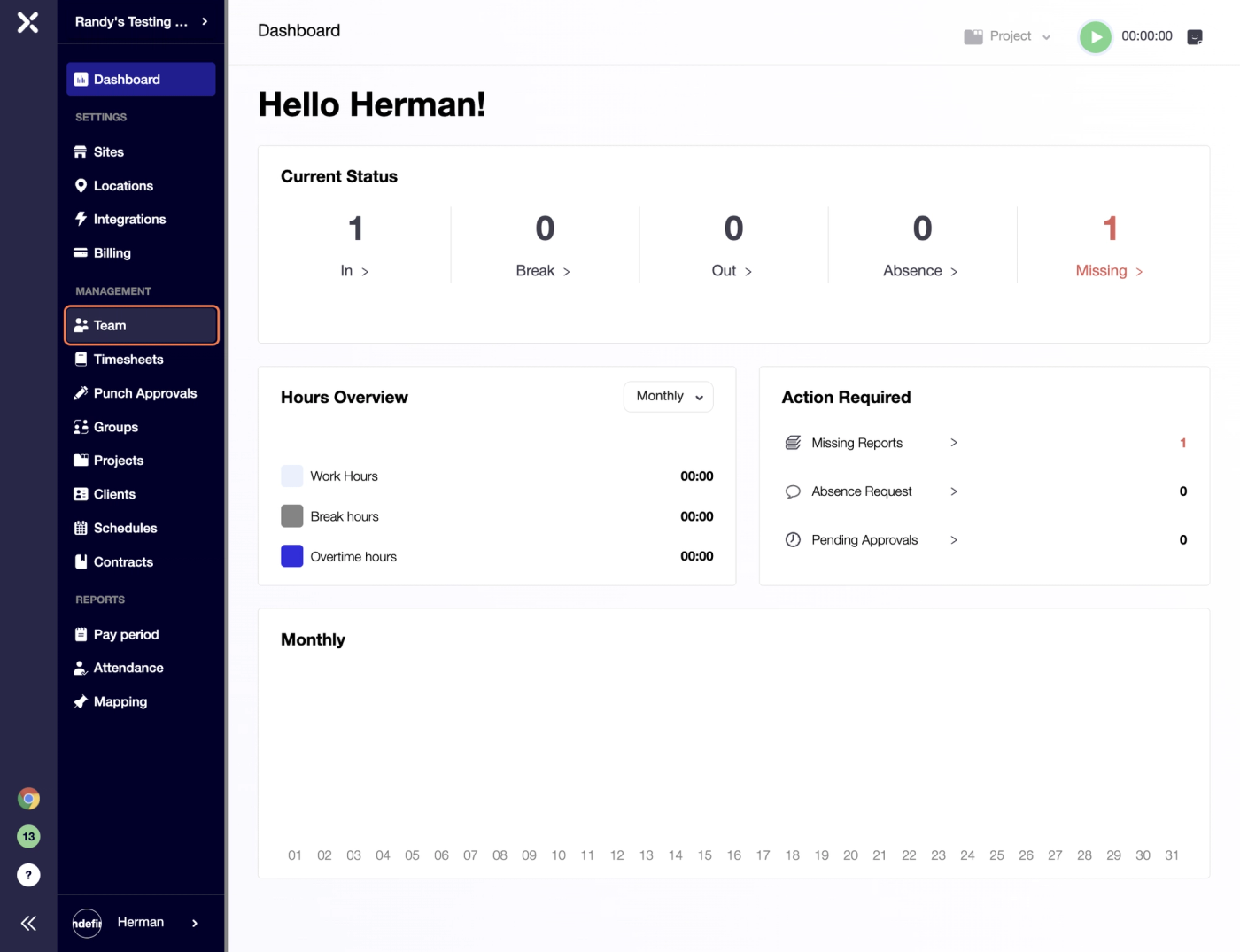
By default the system starts on a Dashboard screen page.
To add a new Employee Profile please click on Team navigation link in Management section of the left-hand side panel:
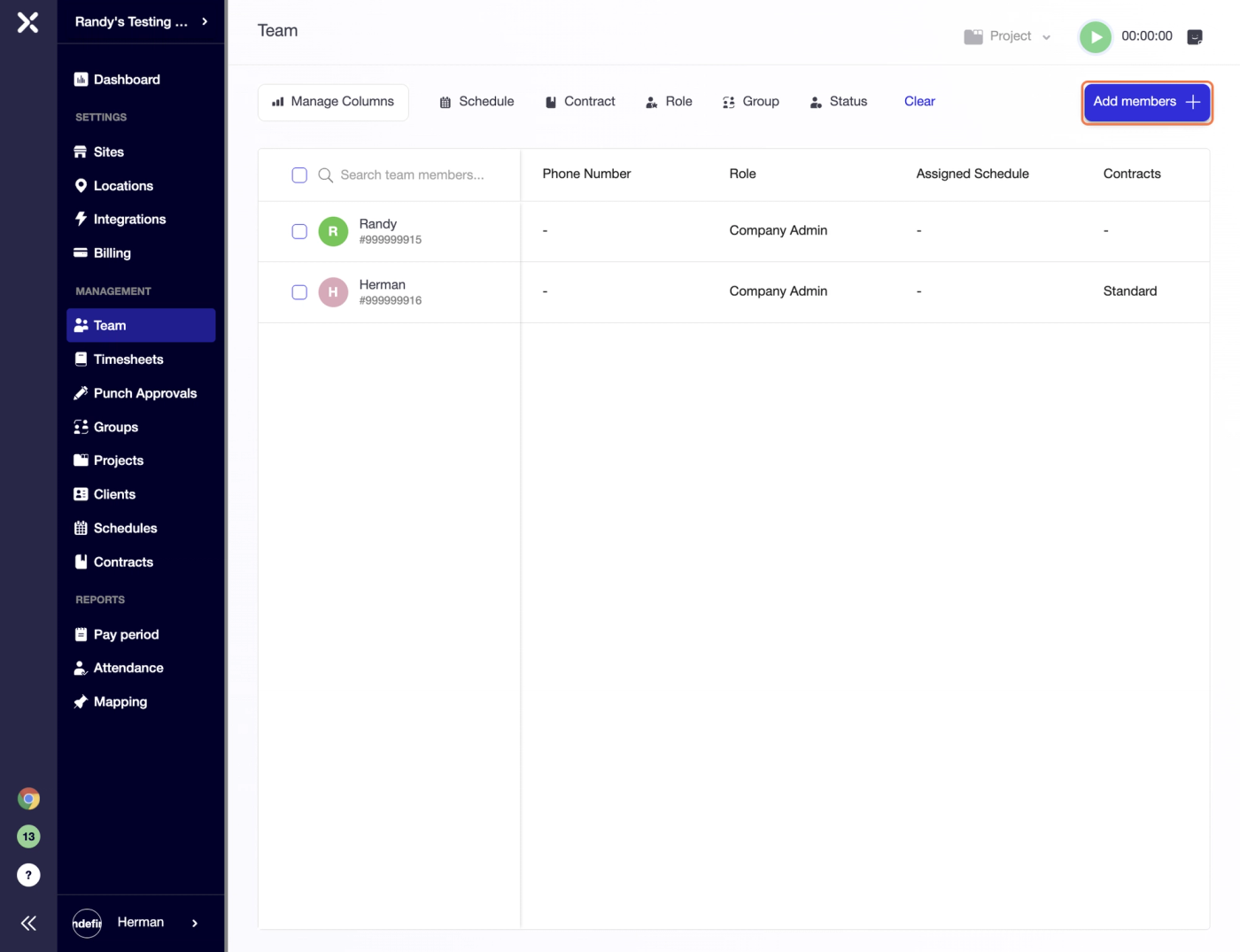
Once the Team screen opens, please click on "Add members +" button located in the top right corner:
On the Add members screen make sure to fill in all the boxes given, including First Name, Last Name, Phone Number and Email.
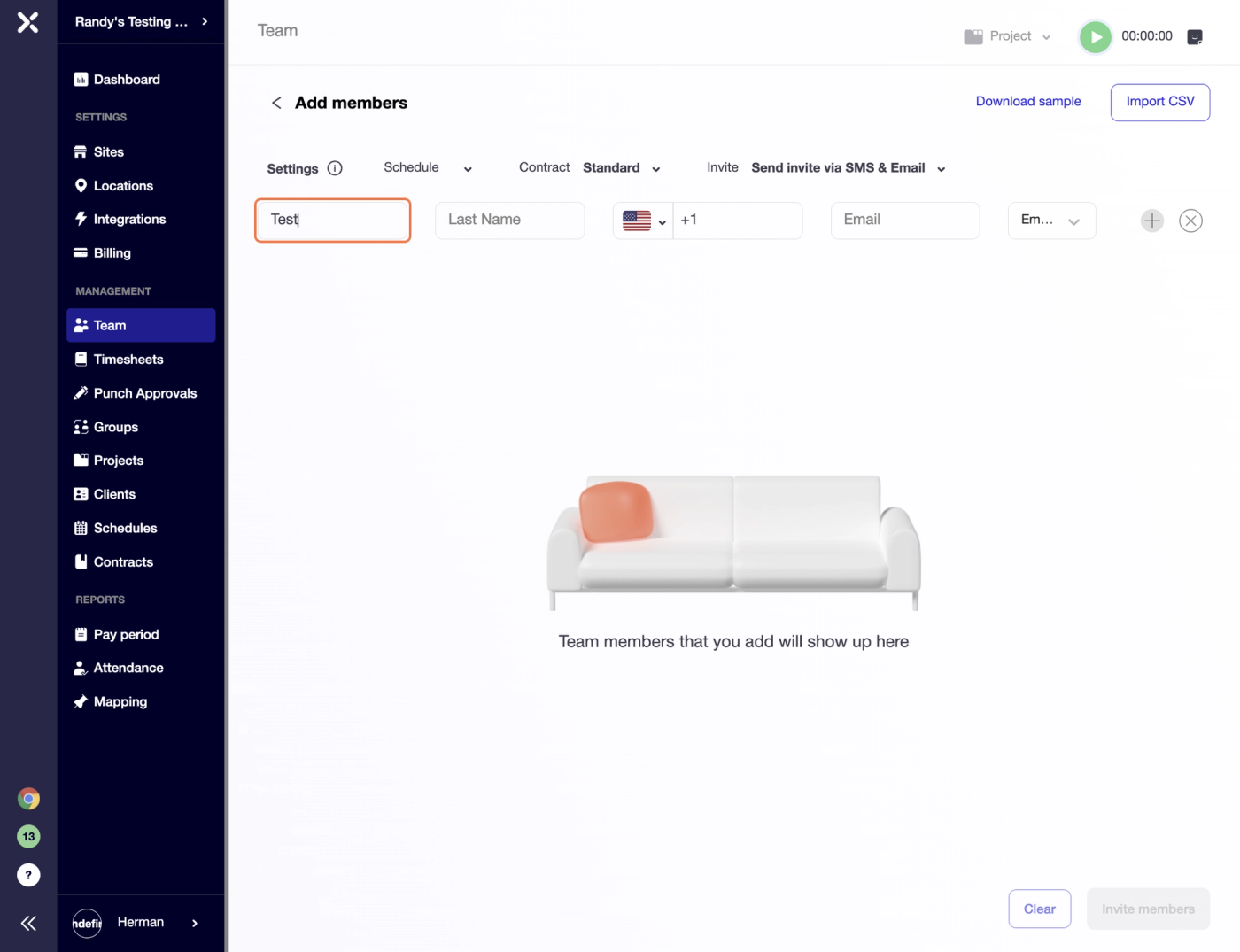
When creating an Employee you can also choose and a role for the new Team Member.
By default an "Employee" user role is assigned. With these user rights the profile can log in, punch and view their Timesheets or request for Time Off.
During the process of creating an employee profile you can assign them with previously set up Schedule and/or Contract.
Additionally, it is possible to select an invite source: SMS, Email or both.
There is also an option to add users in bulk.
To do that please navigate to top right corner and click "Download sample" button. You can choose a CSV or an EXCEL file.
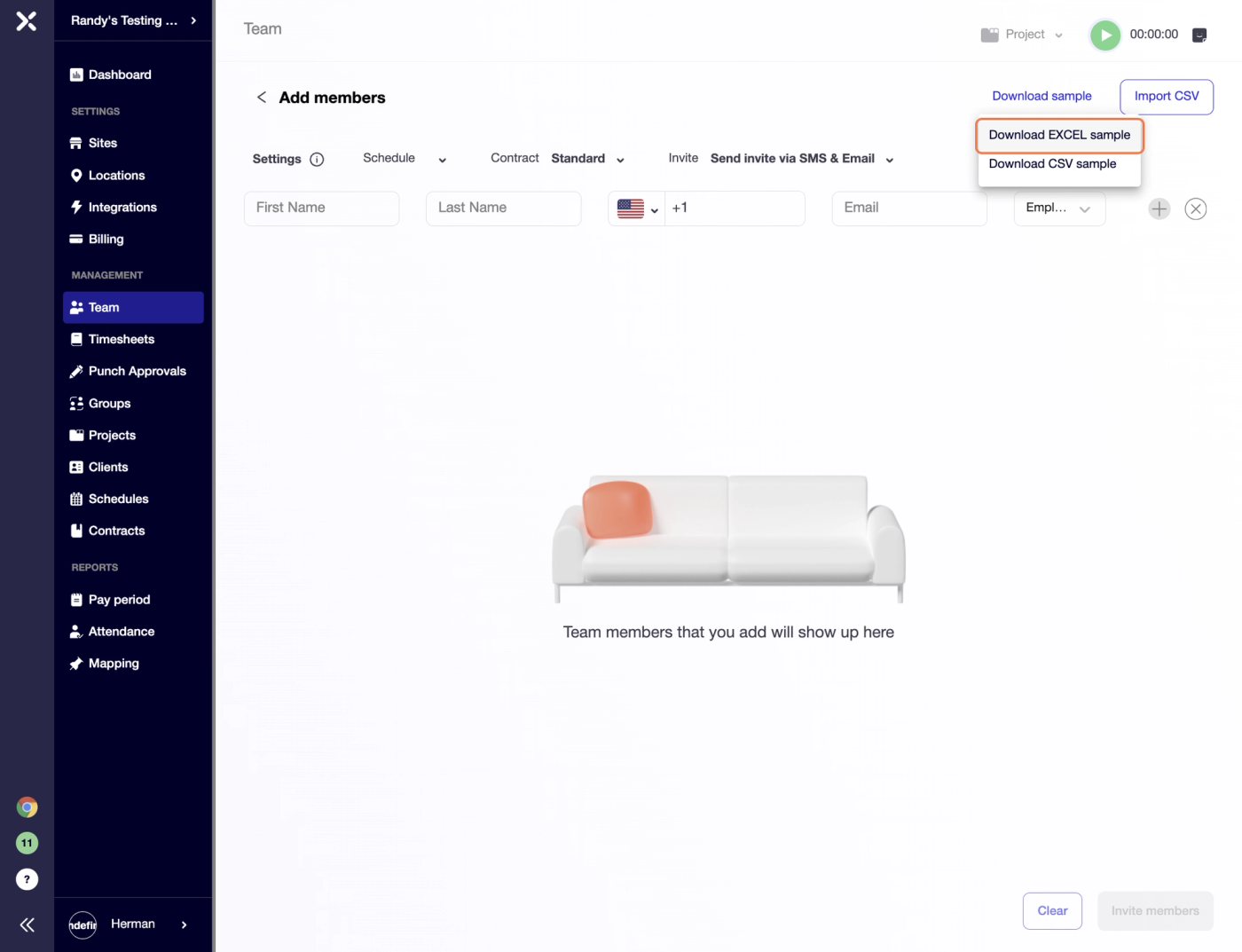
Once the sample file is populated, please click the rightmost "Import CSV" button to upload the file.
You can create multiple profiles first and only then Click on "Invite members" to send multiple notifications at once.
Try Timedox free for 14 days
GPS-verified time tracking, automated timesheets, and real-time reporting. No credit card required.
Herman Zviertsev
Customer Care Team Lead at Timedox